
Registration and sign-in
Requesting an account
The Alarmanlagenmanager is in its trial phase (beta). Accounts are therefore approved individually – usually within a day.
- Open the start page and click Request access (or go straight to
/register). - Choose the account type (see below).
- Enter your email address and a password and briefly describe which panel you'd like to connect – this helps us steer the beta and support the right systems first.
- Once approved, you'll receive an email and can sign in.
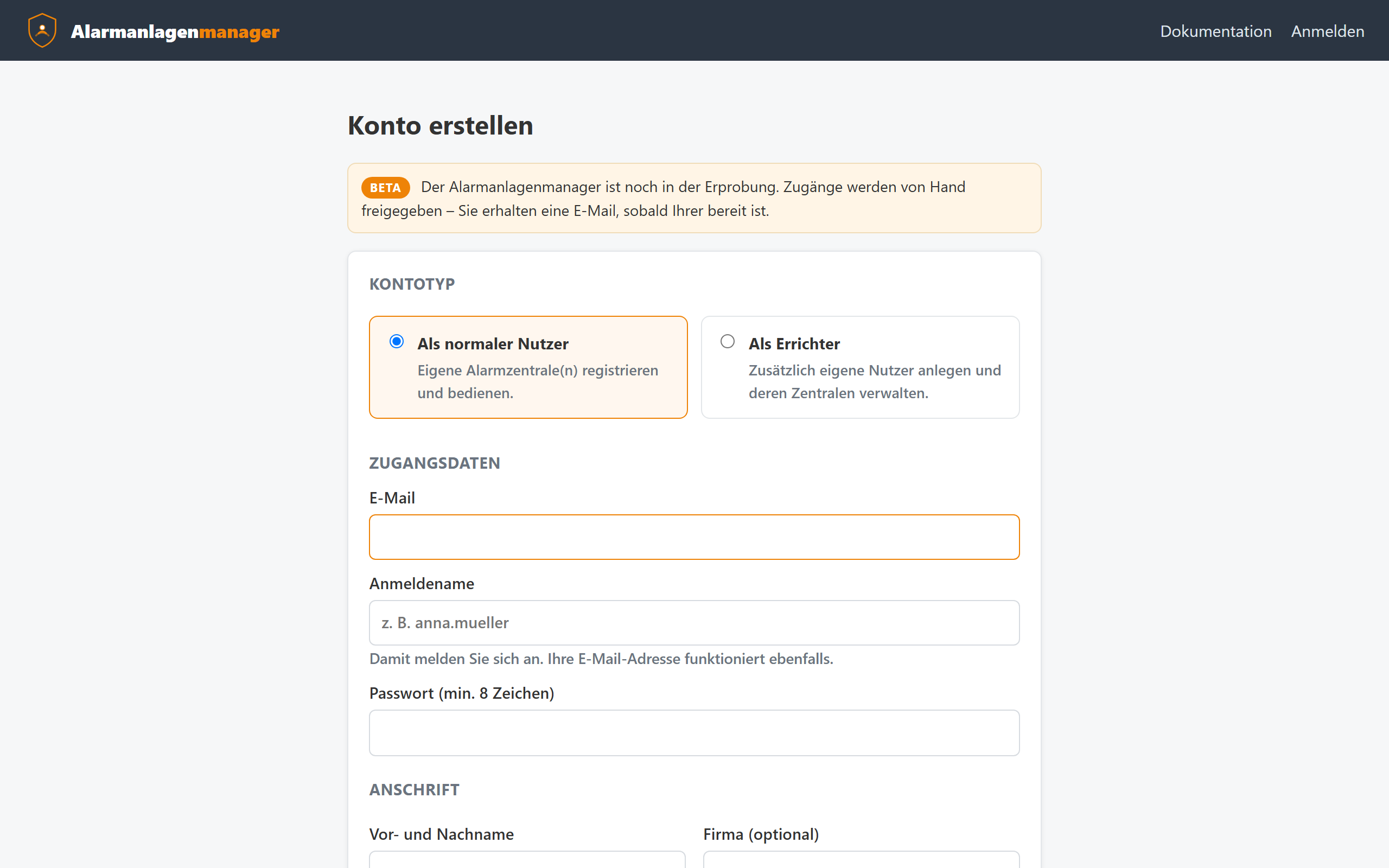
The account types
| Account type | For whom | What it can do |
|---|---|---|
| User (main user) | Private users, operators of one or more of their own systems | Add and fully operate their own panels, invite additional users to their panels and set their permissions |
| Installer | Professional companies | Additionally create customer accounts and set up and look after their panels – without knowing the customers' passwords |
A third type is not created via registration but by invitation: the restricted user. They are added to a panel by a main user and see only what they have been allowed by checkbox – more in the chapter Access and permissions.
Signing in
To sign in at /login, your username or email address and password are
all you need. Initially your username is your email address; you can change
it under Security.
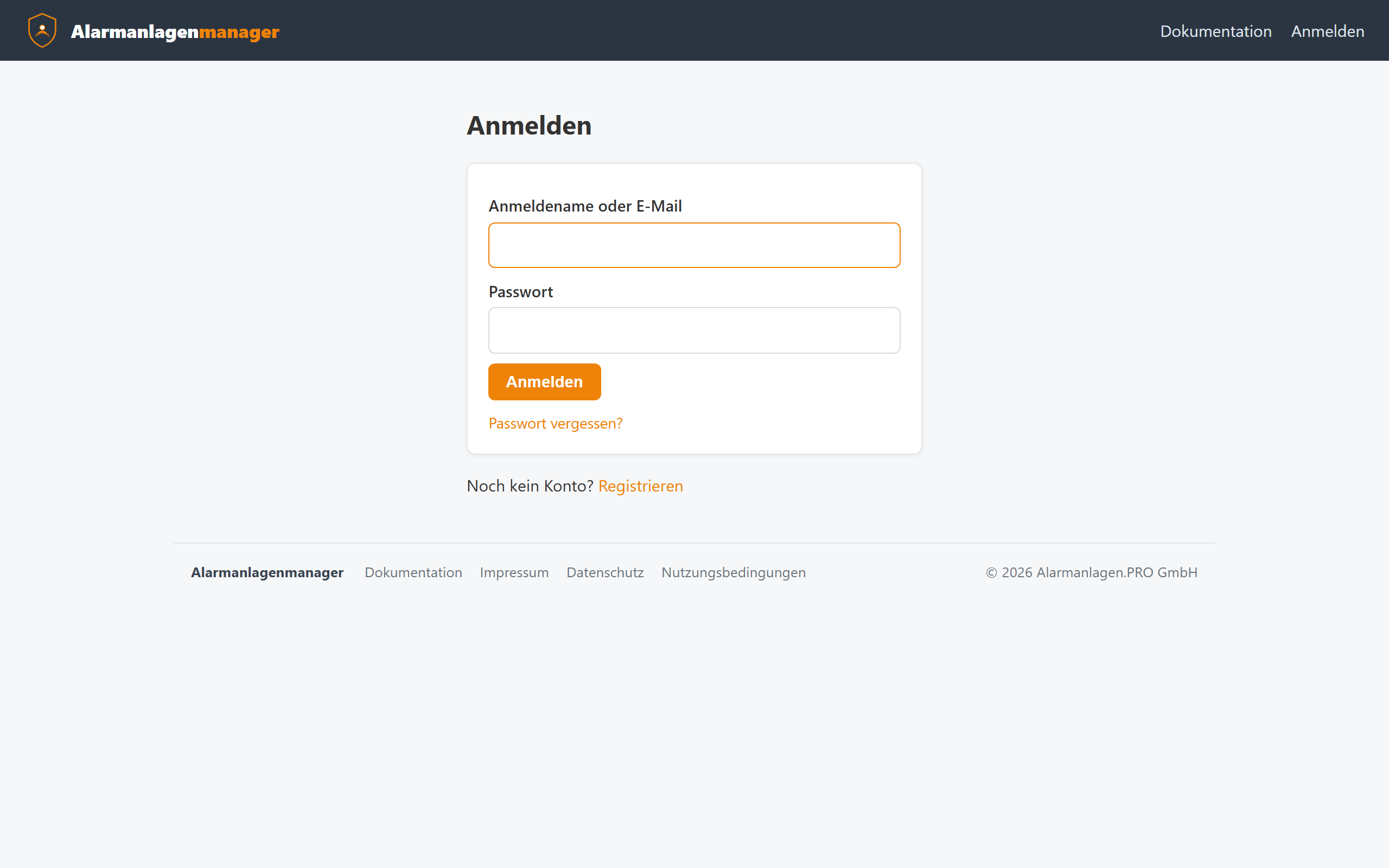
After signing in you land in the Cockpit – the overview of your panels.
Two-factor sign-in (2FA)
We strongly recommend enabling two-factor sign-in – after all, your alarm system hangs on this account:
- Top right, click Security.
- Section Two-factor sign-in: scan the QR code with an authenticator app (e.g. Google Authenticator, Aegis, 1Password).
- Enter the 6-digit code and confirm.
- Store the displayed backup codes safely – they are your fallback if your phone is lost.
From then on every sign-in additionally asks for the 6-digit code – also when signing in from ChatGPT or the Alexa app.
Forgot your password?
On the sign-in page, Forgot your password leads to a form that sends you a reset link by email. Installers cannot see the passwords of the customers they created, but they can trigger the reset process.
Signing out
- In the Cockpit: top right via the menu.
- In a panel's panel view: at the bottom of the menu under "Device connection" → Sign out.
Note for installers: How to create customer accounts and hand over systems after your own registration is covered in the Installers chapter.