
Account security
The "Security" page
Top right in the Cockpit, Security leads to your account settings:
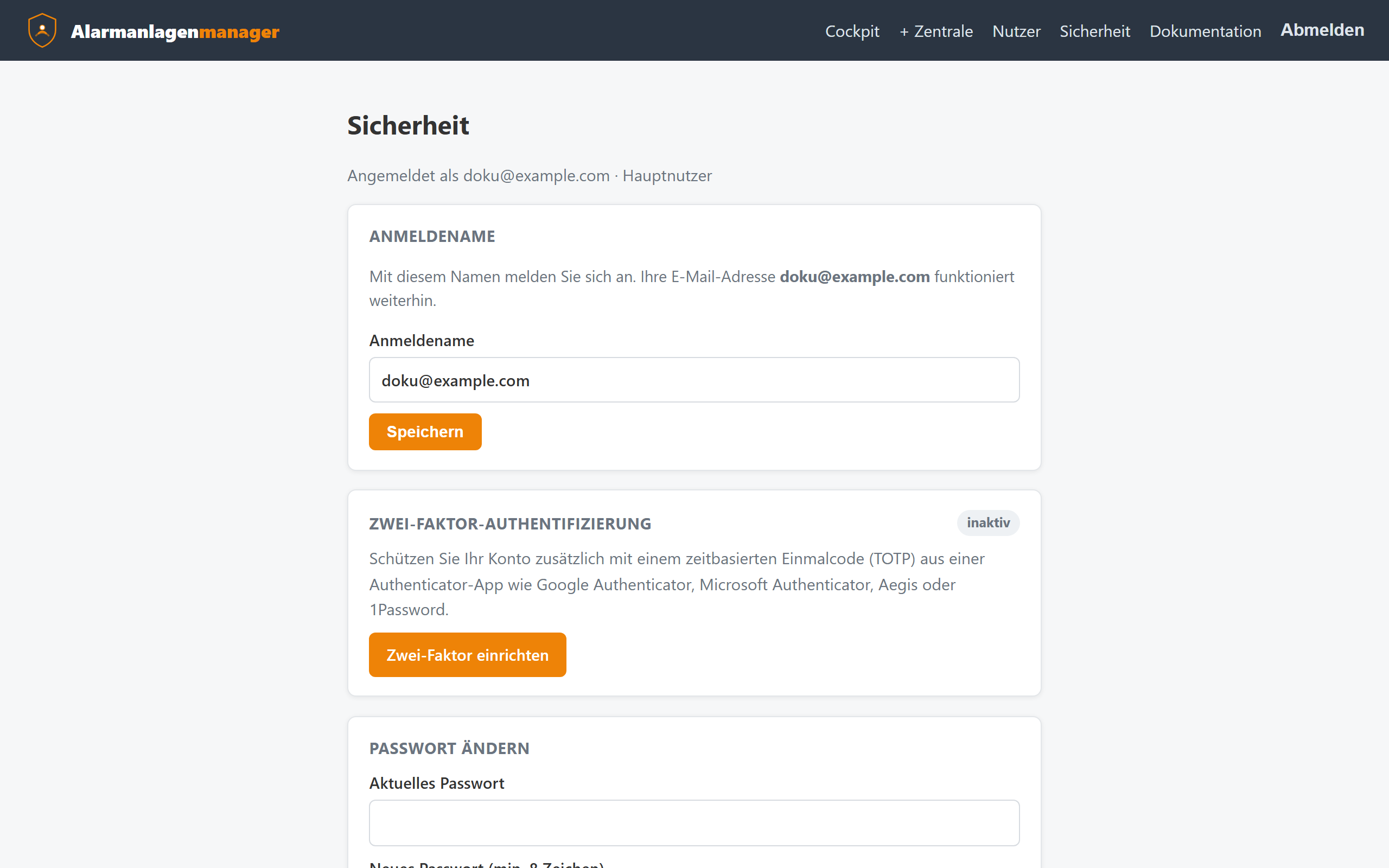
- Username – initially your email address; changeable here.
- Change password – your current password is required.
- Two-factor sign-in (2FA) – set up, manage backup codes, disable.
Setting up two-factor sign-in
- Scan the QR code with a TOTP app (Google Authenticator, Aegis, 1Password, Microsoft Authenticator …).
- Enter the displayed 6-digit code – 2FA is now active.
- Write down the backup codes and store them safely (not as a photo in the same cloud as your password!). Each code is usable once and replaces the authenticator if the device is lost.
The 2FA prompt applies wherever you sign in with this account – including account linking from ChatGPT or the Alexa app.
Recommendations
- A dedicated, long password just for this portal (password manager).
- Enable 2FA – your alarm system hangs on this account.
- Review access: under Access and in AI access you can see at any time who and what can reach your panels – links you no longer need are disconnected there with one click.
- The panels' passwords are stored encrypted and never displayed; if you change one on the panel, update it under the panel's "Edit".
Sessions
Sign out ends your browser session. Sessions expire automatically after longer inactivity; a fresh sign-in (including the code if 2FA is active) is then required.