
The Home view
Layout of the panel view
Clicking a panel in the Cockpit opens its panel view. The main menu sits on the left, the header with name, time and connection status at the top, and the content of the selected view on the right.
Tip: The ? button in the header opens the matching chapter of this documentation for every view as a side panel – without leaving the controls.
The main menu:
| Item | Content |
|---|---|
| 🏠 Home | The overview described here |
| 📟 Sensors | List, range, universal remote control (Lupus only) |
| 💡 Smarthome | Automation, rule groups, profiles, scenes, switches, cameras, recordings, statistics |
| 🛡️ Alarm system | Mode & status, settings, sirens, reporting, PIN codes, master/special codes |
| ⚙️ Settings | Network, Wi-Fi, email, SMS, SIM/GSM, DynDNS |
| 📊 System | Status, log, credentials, firmware, factory reset, API explorer |
| 🤖 AI access | Keys and links for ChatGPT, Claude & co. |
| 👥 Access | Other users' permissions on this panel |
* Rule groups and profiles exist only on Lupus – on VESTA panels those items are hidden automatically.
At the very bottom of the menu, under Device connection: ⟵ Cockpit (back to the overview) and Sign out.
The Home overview
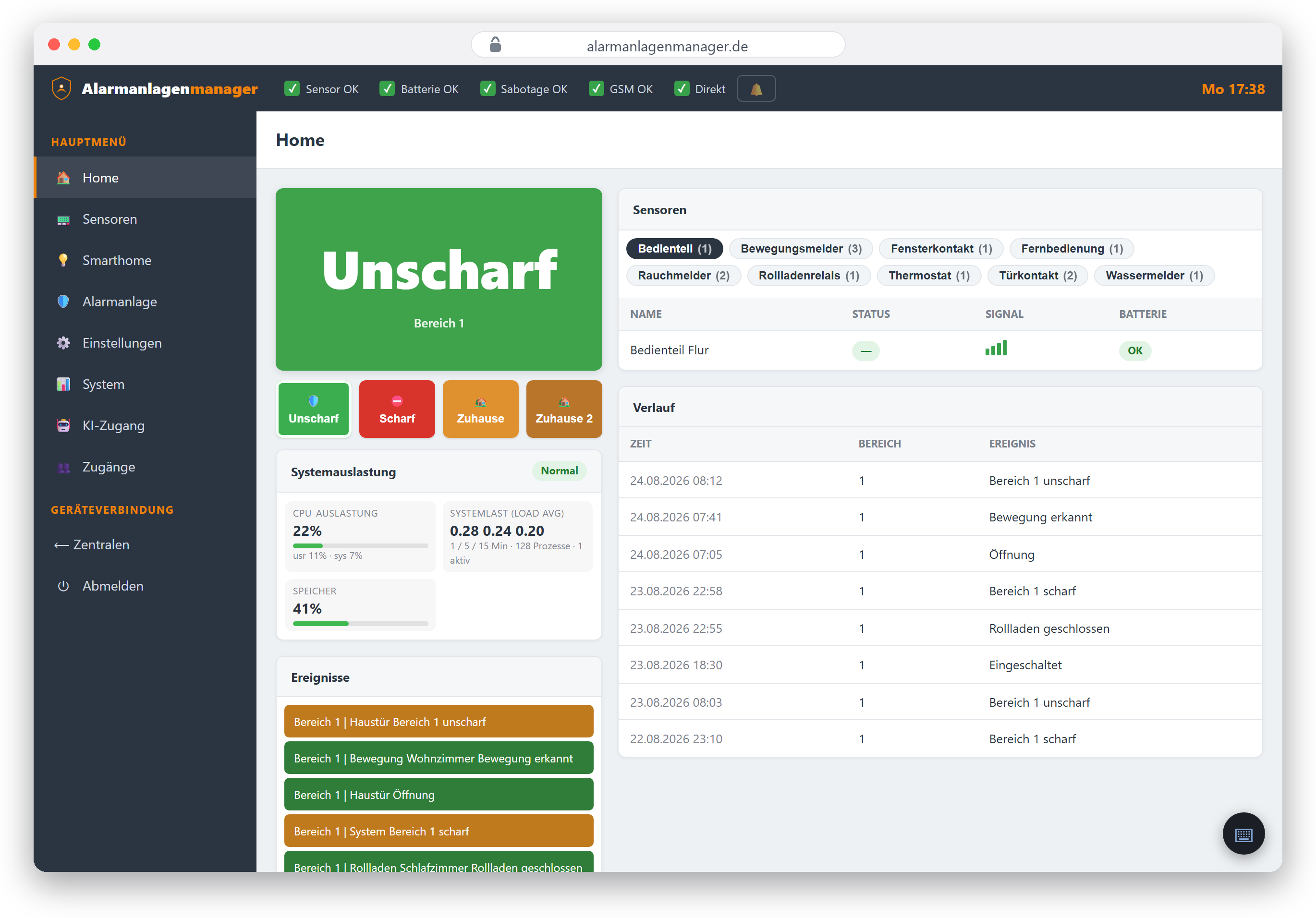
The Home view bundles what you need daily:
- Mode per area – armed, disarmed or home mode, with buttons for direct switching (see Arming and disarming).
- Faults – pending panel-wide messages (e.g. power failure, battery warning, tamper) as clearly visible notices.
- Sensors – the current state of your detectors: open doors and windows are immediately recognisable.
- History – the latest events (who switched when, which detector triggered).
- Cameras – current images of your cameras as tiles (if present and if your account has the "View cameras" permission).
Live updates
The view keeps itself current: messages from the panel (door contact opened, mode changed, alarm) appear without reloading. In addition the interface regularly re-checks the alarm state – an alarm turns the header clearly red and lays a notice over the view, whichever menu item you are currently in.
Connection display in the header
- Direct (HTTP) – the panel is addressed via its URL.
- P2P (XMPP connected) – the remote connection is up.
- P2P … with other text – the remote connection is being established or is struggling; details in Troubleshooting.